Upload Files
Upload
To upload a file, navigate to the review section of Glympse and click upload in the top right.
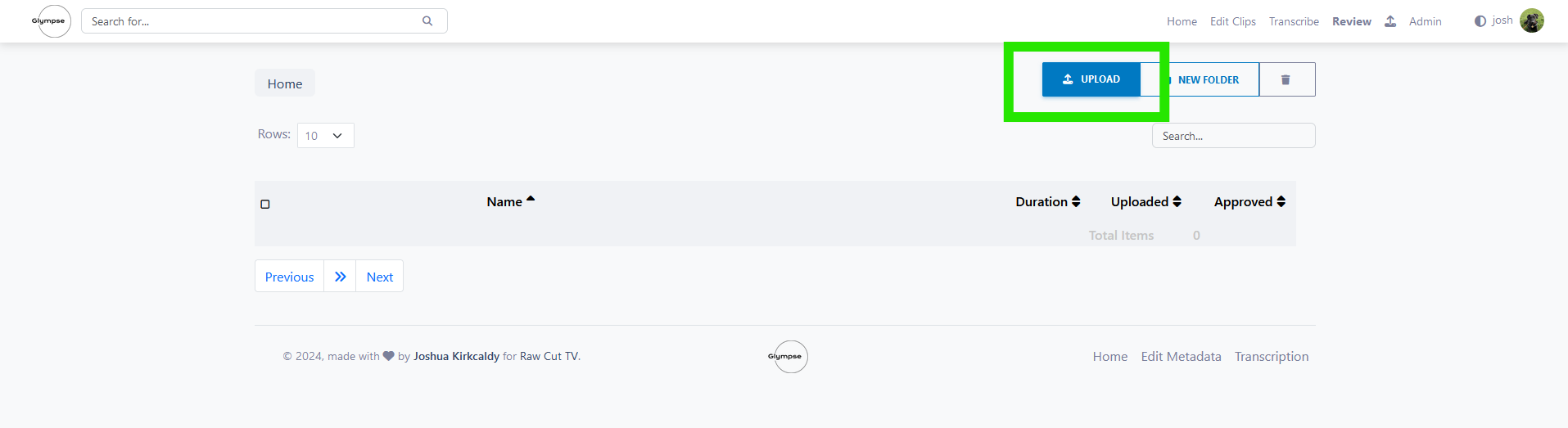
This will take you to the upload form.
Every file you upload must belong to a production.
Existing Production
To upload to an existing production simply select it from the drop down menu.
Next either select the file to upload or give it a title. If you leave the File Name field blank, by default it will use the filename of your selected file.
Select the file you’d like to upload by either dragging and dropping it into the upload box or clicking inside the box to bring the file select dialogue.
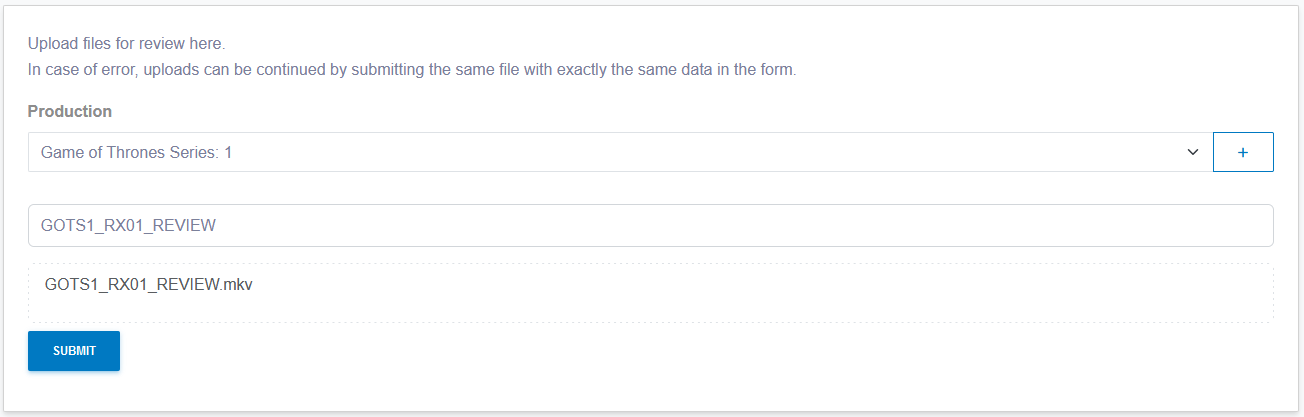
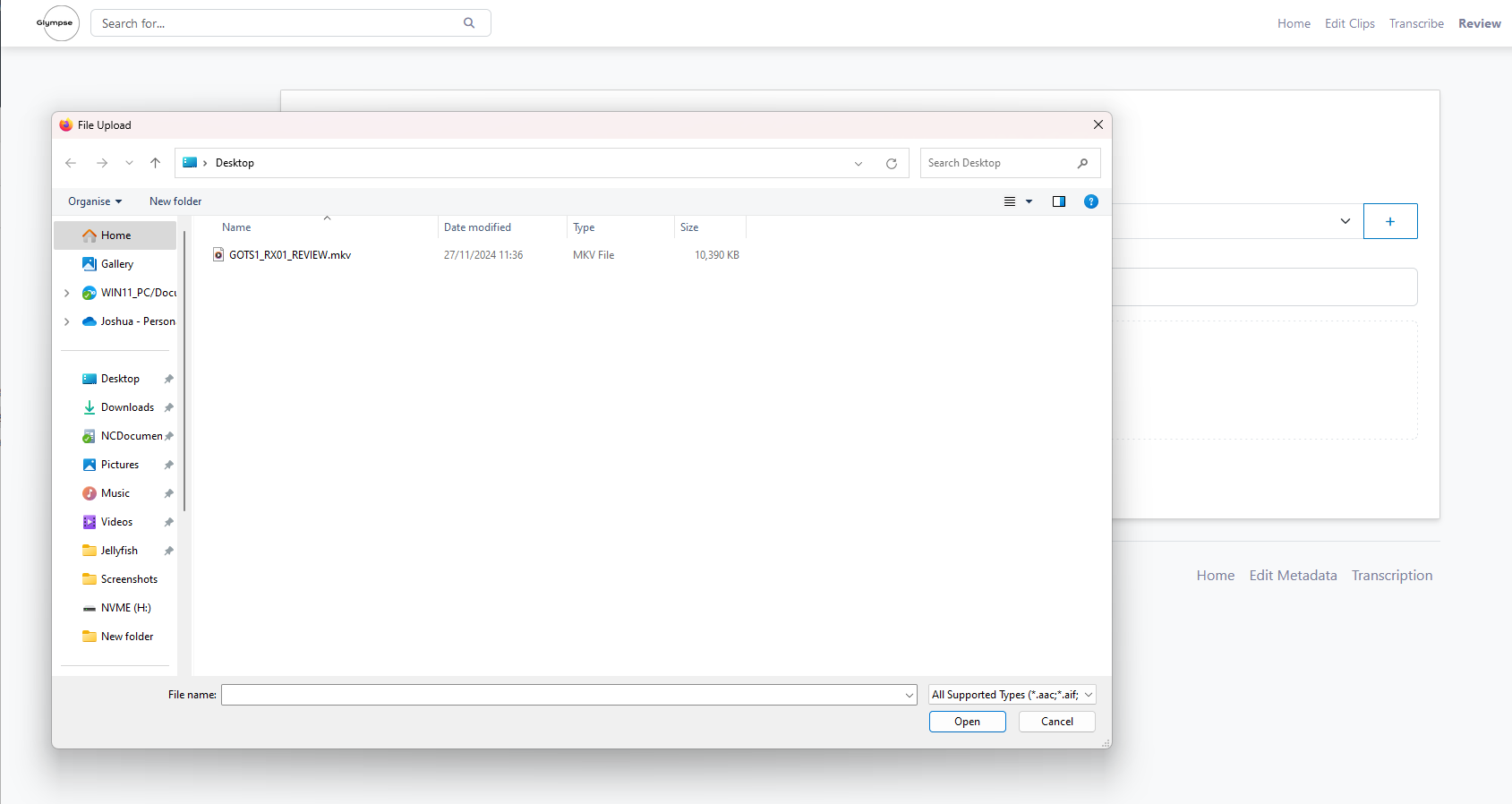
Once you have selected your file click upload and it will start uploading.
New Production
To upload a file to a new production, you will first need to create the Production. From the review upload page, click the blue + button.
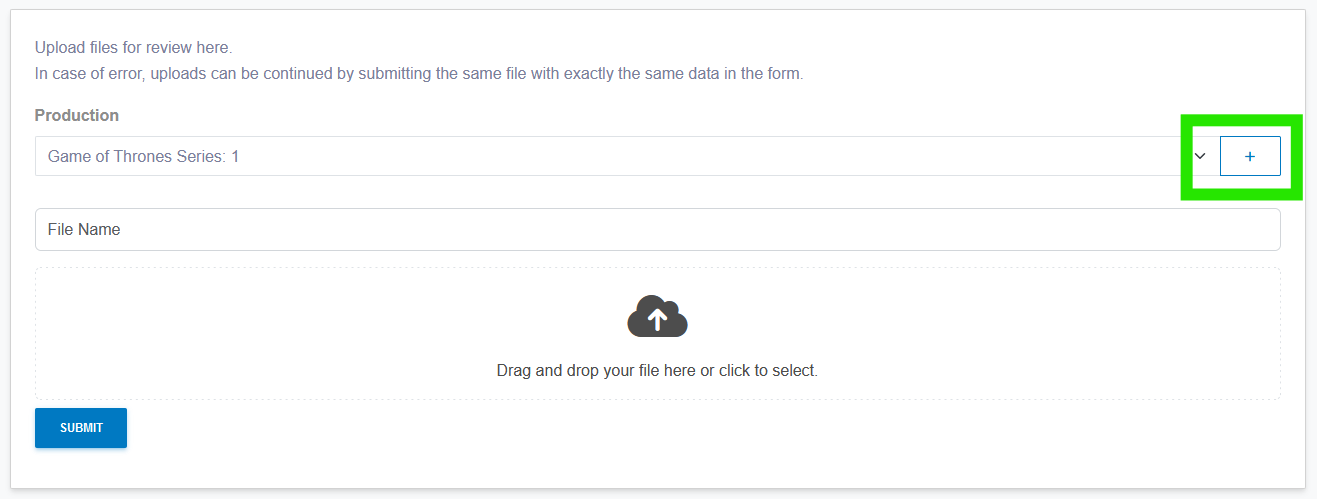
This will open the Add Production Modal. This is similar to adding a normal production, only here you don’t need to select a directory to scan for rushes or add a priority.
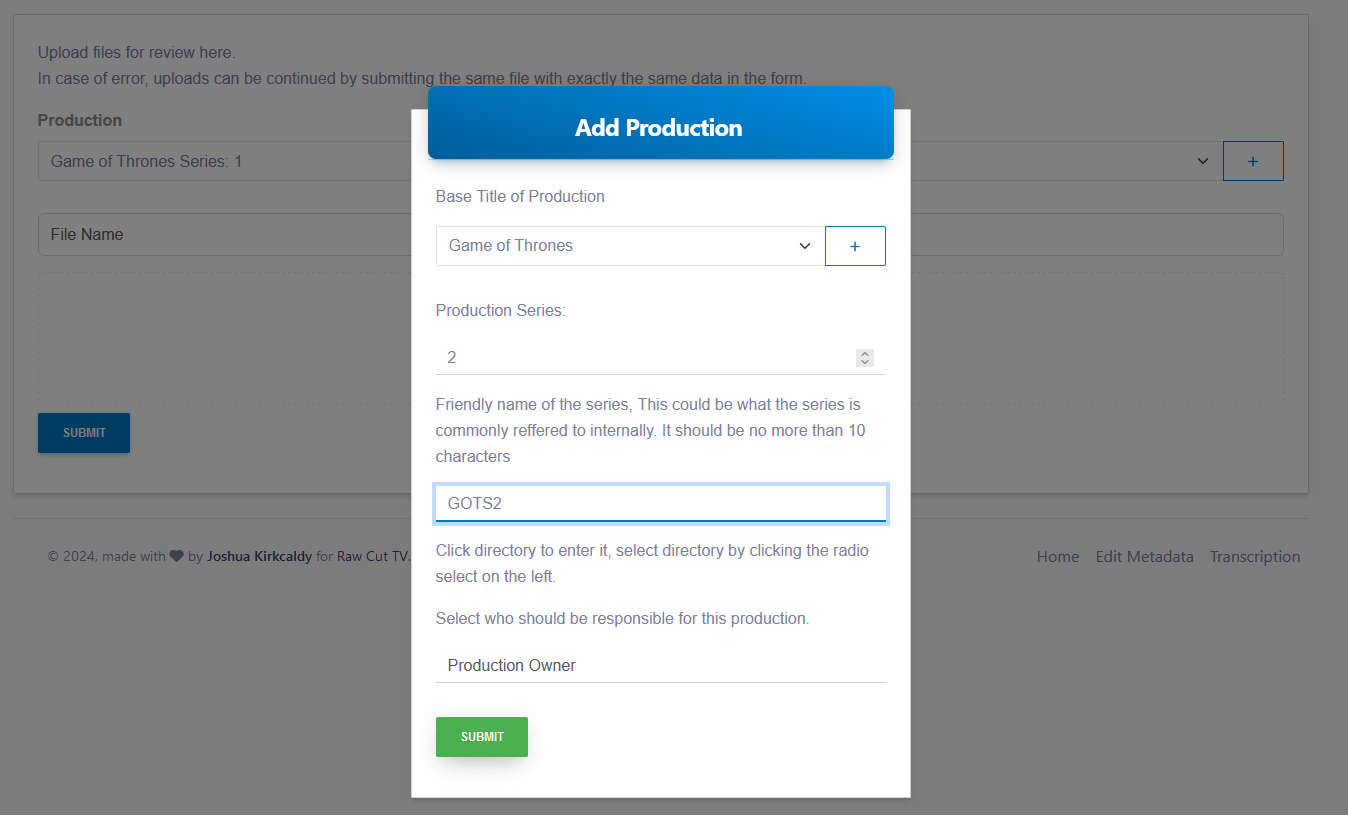
Once you click submit, the production will be created and automatically selected on the upload form.
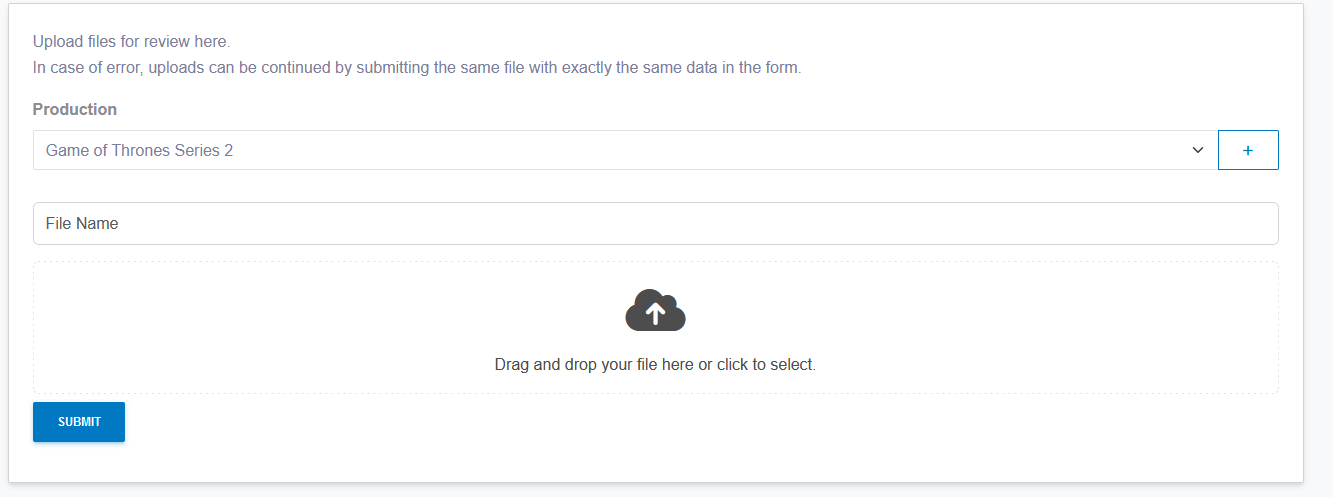
Select or drag and drop your file and click upload.
Cancel upload
If you need to cancel an upload, you can stop and remove it by pressing the red X icon that shows when you hover your mouse over the progress bar.
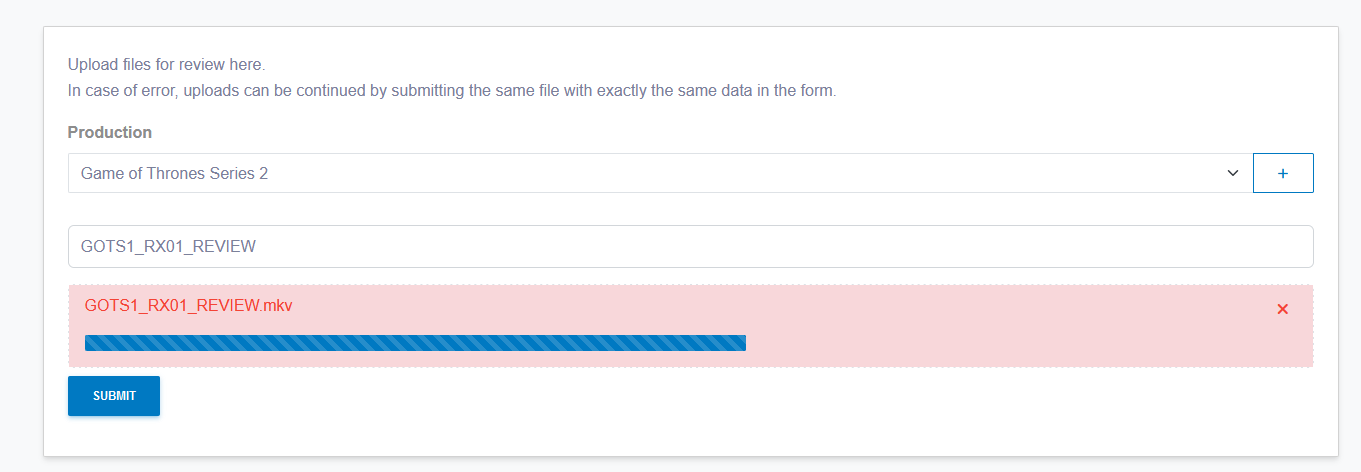
Resume upload
If for whatever reason the upload fails, you can resume the upload by submitting the same file with the same information and it will continue the upload from where it left off.