Transcribe Glympse Clips
There are a couple of ways you can send existing clips from Glympse to be transcribed.
When watching
When you are watching the clips, you can select the clips you would like to transcribe by checking them in the table below the video player

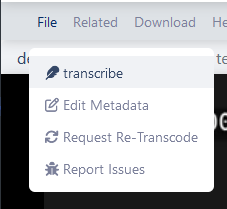
Then from the file menu select transcribe.
This will open the the transcript options. Most of these can be left as default.
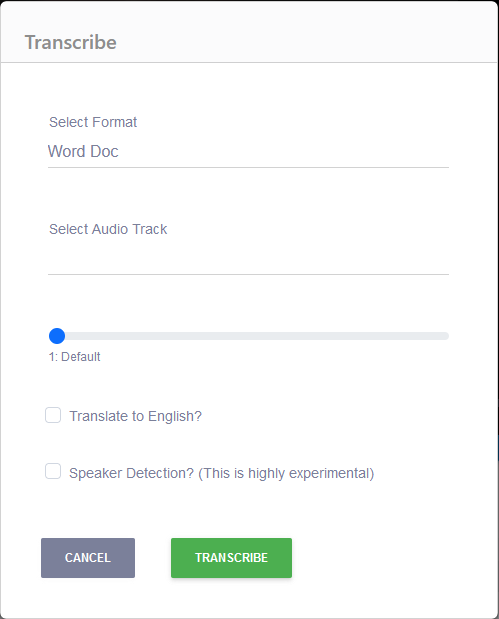
Click submit and the file will be sent to the transcript engine. Once it has finished you will be receive an email with the transcript document.
You can also check the progress of the transcript in the transcript page.
Transcript Options
Select Format
The only option here is Word Doc, though you can download a subtitle file or an avid ScriptSync file from the transcript page.
Select Audio Track
For cameras with multiple audio tracks it is possible to select which track you would like to have transcribed. By default it will transcribe the full mix track.
Verbosity
This is how often the timecodes are injected in the transcript. It is possible to change this later in the transcript page.
Translate to English
If your file is a foreign language, it is possible to translate it to english. The language detection is automatic but not perfect. This is not a perfect solution but should give you a starting point.
Translations should be checked by a Translator before file delivery
Speaker Detection
Experimental
This will try detect the different speakers in a file. Currently it only supports checking for two different people speaking.